
Crop tool · Updated September 2026
Crop a photo to a square, a circle or any ratio
Drag a frame over the part of the photo you want to keep. Lock it to a shape — square, 4 : 5, 16 : 9, 9 : 16 — or make it a circle with a transparent background. Set the output size at the same time, so the cropped picture comes out at exactly the pixels you need.
One click
Pick a shape
The resizer opens with the crop frame locked to this shape; drag it into place and download.
Each link opens the resizer with these settings already filled in — you only choose the photo and press Download. Nothing is uploaded; the work happens in your browser.
Step by step
How to crop a picture online
-
01
Open the photo
Drag it in, click Choose a photo, or paste with Ctrl + V.
-
02
Choose a shape — or not
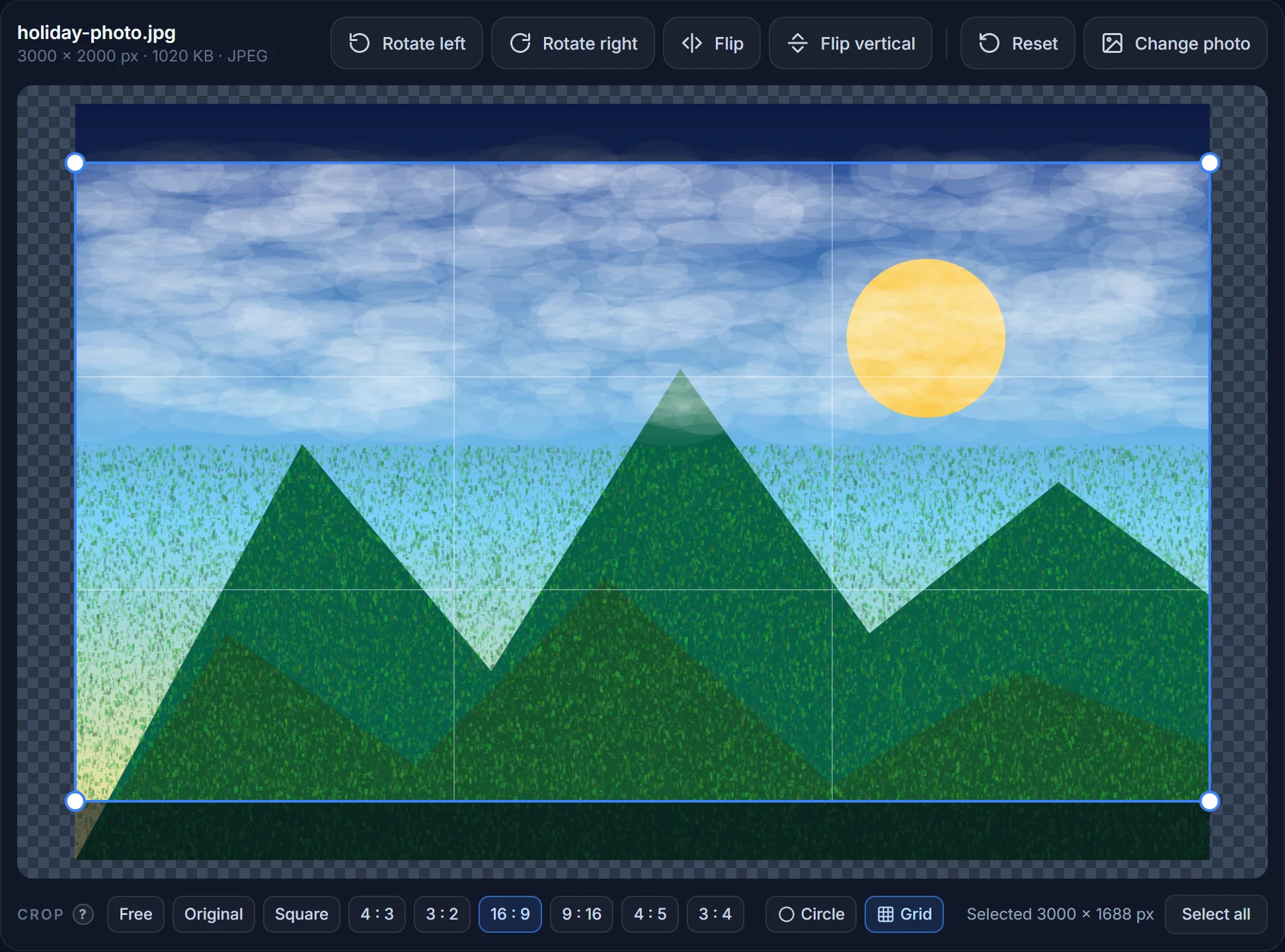
Above the picture, under Crop, click Square, 4 : 3, 16 : 9, 9 : 16… to lock the frame, Circle for a round cut-out, or leave it on Free.
-
03
Move the frame
Drag inside the blue frame to move it; drag a corner or an edge to resize it. The dimmed area is what gets cut away; the 3 × 3 grid helps you line things up. Original brings back the whole photo.
-
04
Set the size and download
The output size follows the frame. Type a width if you need a specific one (the height follows), or turn the lock off for an exact width and height. Pick JPG, PNG or WebP and download.
Crop vs. resize
Why the shape and the size are set together
Most crop tools make you crop first and resize second — and if the two do not match, the picture gets stretched. Here they are one step. When the lock between Width and Height is on, the output keeps the shape of the frame. When you turn it off and type both numbers (say 1080 × 1920), the frame snaps to that shape and the photo is cropped to fit — never squashed. Picking a size under Common sizes does the same thing.
Rotating a sideways photo first? Click Rotate left / right above the picture; the frame turns with it, so you never crop the wrong way round.
Circles
Round profile pictures with a transparent background
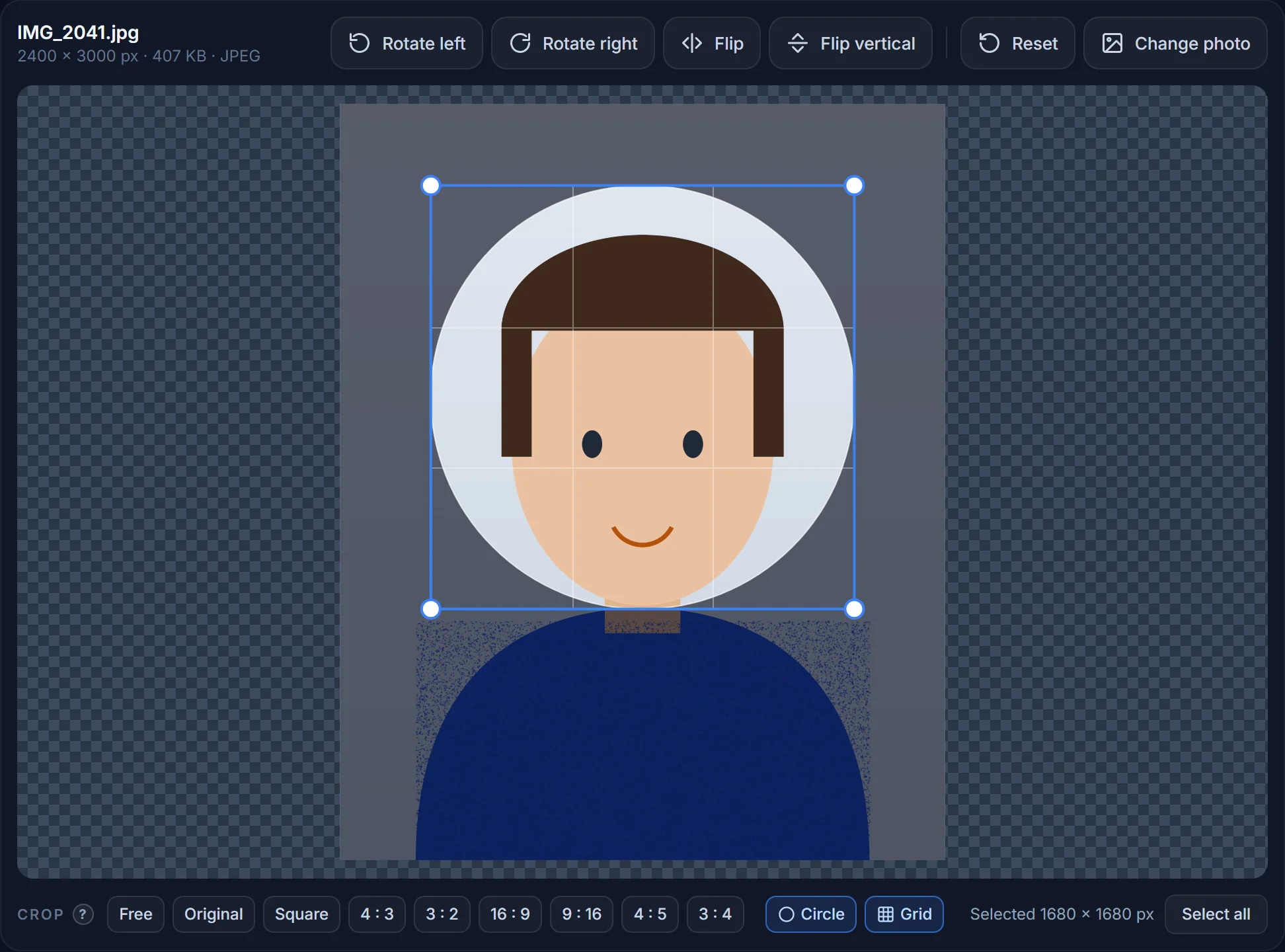
Click Circle and the frame becomes a circle; everything outside it is made transparent and the file is saved as PNG (JPG cannot be transparent). Use it for websites, documents, slides and e-mail signatures where the round shape must be part of the file.
For Instagram, X, LinkedIn, WhatsApp, Discord and most apps you do not need this: upload a square photo and the app shows it as a circle itself. A square crop keeps more options open.
How do I crop a photo into a circle?
Open the photo, click Circle above the picture, drag the circle over the face, download. The corners are transparent and the file is a PNG.
How do I crop a picture to 16 : 9 for a YouTube thumbnail?
Click 16 : 9 under Crop and drag the frame, or pick Common sizes → YouTube → Video thumbnail to also set 1280 × 720 px.
Can I crop to an exact pixel size?
Yes. Turn off the lock between Width and Height and type both numbers — the frame locks to that shape and the output is exactly that size. Or pick a size from Common sizes.
Does cropping reduce quality?
No. Cropping only removes pixels outside the frame; the pixels you keep are untouched. Quality only changes if you also resize or lower the JPG quality.
How do I crop on a phone?
The same way — drag the frame with your finger, pinch nothing (the corners are big enough to grab). The settings are below the picture.
Can I crop several photos at once?
Not yet; one picture at a time. Batch cropping is on the list.
Crop a photo now
Square, circle or any ratio, at the exact size you need. Nothing is uploaded.